> ## Documentation Index
> Fetch the complete documentation index at: https://www.voiceflow.com/docs/llms.txt
> Use this file to discover all available pages before exploring further.
# Secrets
> Securely store sensitive information.
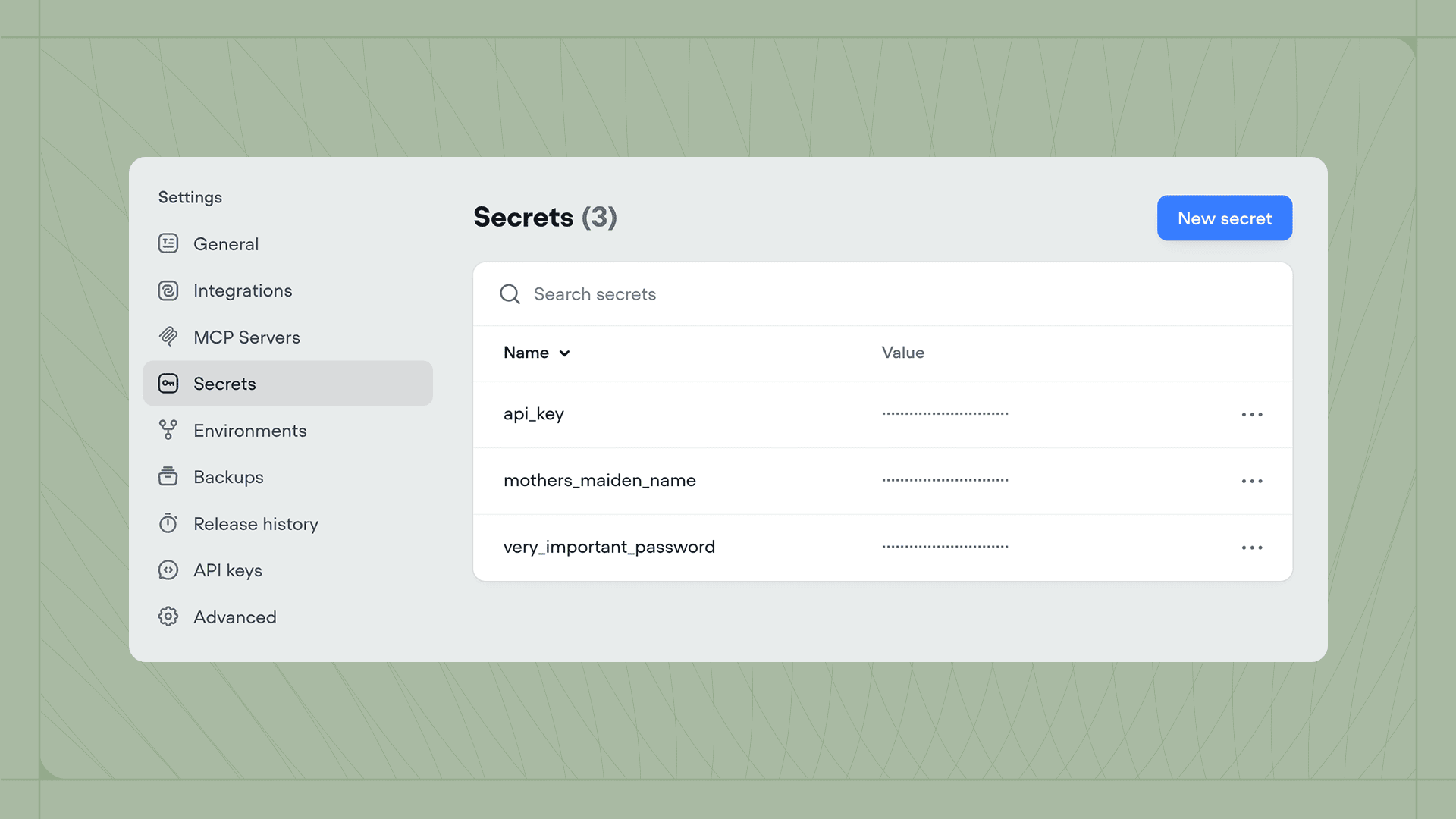 Secrets let you securely store sensitive information like API keys, database credentials, and encryption keys. Unlike variables, secret values are encrypted and hidden from view, keeping your credentials safe while still allowing your agent to use them.
## Creating secrets
You can create and manage secrets in **Settings** → **Secrets**. Click **New Secret** in the top right to create one.
When creating a secret, you'll provide a name, value, and visibility setting:
* **Masked** secrets are hidden by default but can be temporarily revealed by clicking on them.
* **Restricted** secrets cannot be revealed after creation. Use this for highly sensitive credentials.
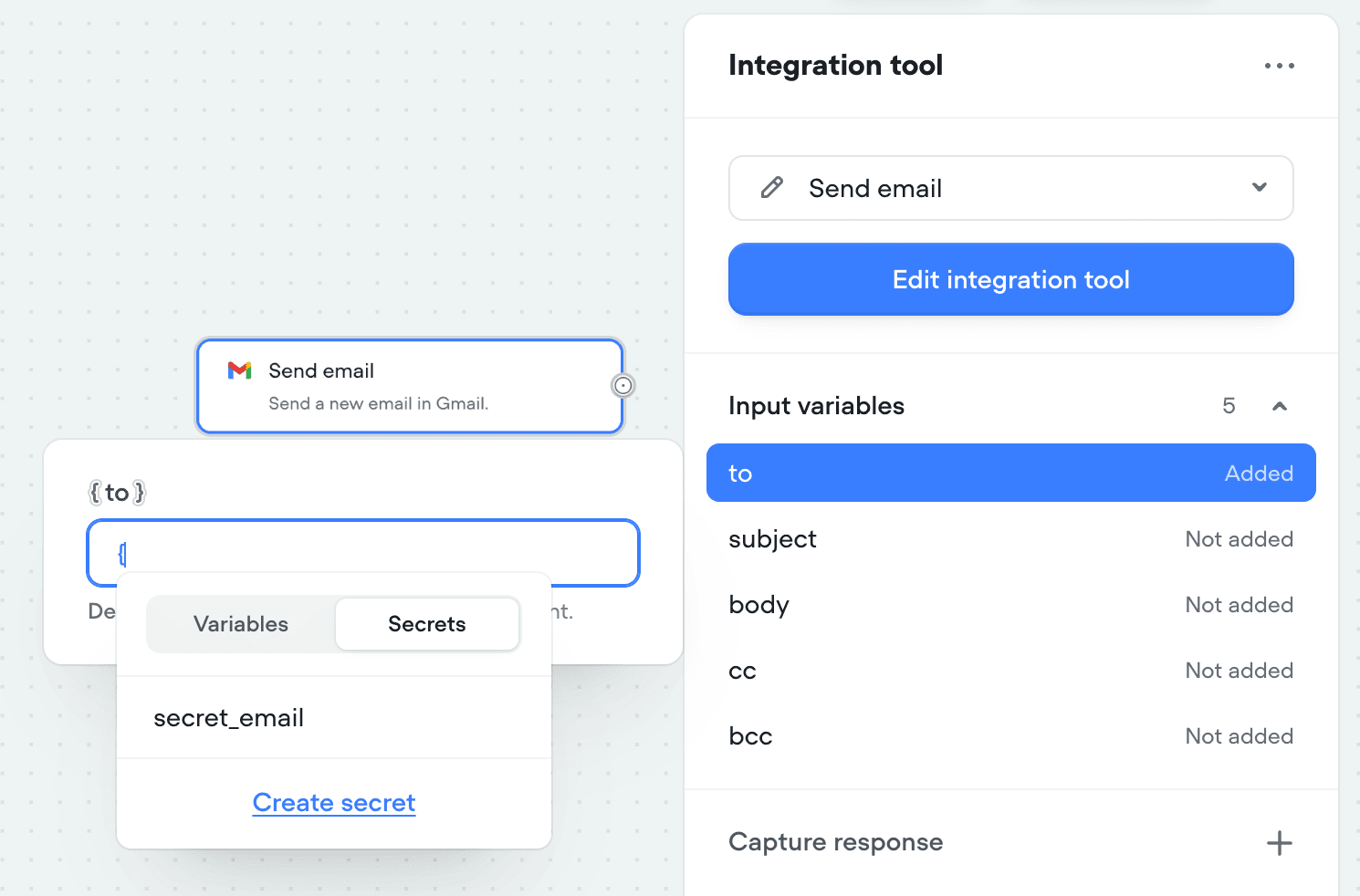
You can also create secrets inline while building. Type `{` in any input field, switch to the **Secrets** tab in the dropdown, then click **Create Secret** at the bottom.
## Using secrets
Secrets work like variables but are accessed from a separate tab. In any input field within a [tool](/docs/documentation/build/tools/api-tool), type `{` to open the dropdown, then switch to the **Secrets** tab and select the secret you need.
Secrets let you securely store sensitive information like API keys, database credentials, and encryption keys. Unlike variables, secret values are encrypted and hidden from view, keeping your credentials safe while still allowing your agent to use them.
## Creating secrets
You can create and manage secrets in **Settings** → **Secrets**. Click **New Secret** in the top right to create one.
When creating a secret, you'll provide a name, value, and visibility setting:
* **Masked** secrets are hidden by default but can be temporarily revealed by clicking on them.
* **Restricted** secrets cannot be revealed after creation. Use this for highly sensitive credentials.
You can also create secrets inline while building. Type `{` in any input field, switch to the **Secrets** tab in the dropdown, then click **Create Secret** at the bottom.
## Using secrets
Secrets work like variables but are accessed from a separate tab. In any input field within a [tool](/docs/documentation/build/tools/api-tool), type `{` to open the dropdown, then switch to the **Secrets** tab and select the secret you need.
 ## Managing secrets
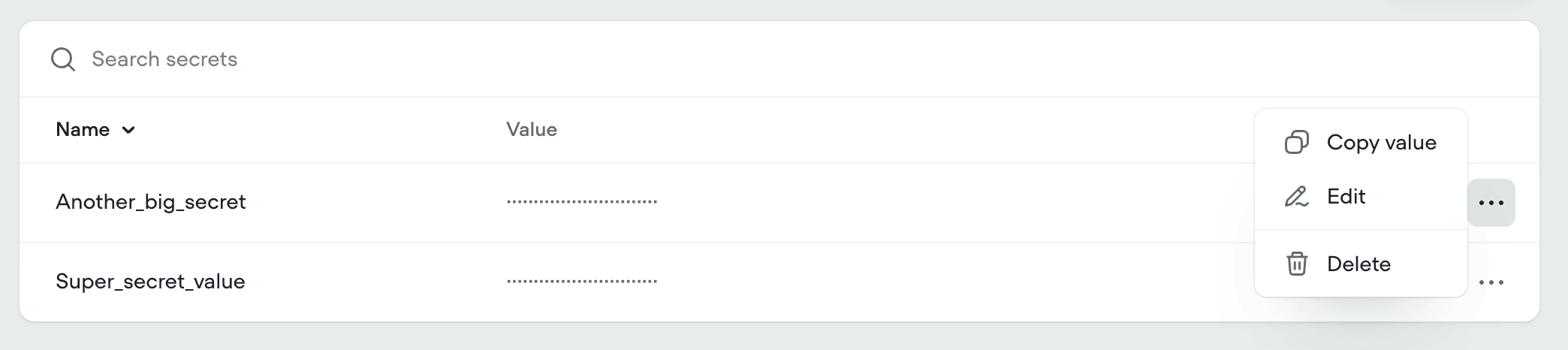
To edit or delete a secret, click the three dots menu next to it. For masked secrets, you can also copy the value to your clipboard. Restricted secrets cannot be copied or revealed.
## Managing secrets
To edit or delete a secret, click the three dots menu next to it. For masked secrets, you can also copy the value to your clipboard. Restricted secrets cannot be copied or revealed.
 ## Secrets across environments
Secrets are project-wide. The values you set in **Settings** → **Secrets** are the defaults for every [environment](/docs/documentation/deploy/environments) in your project, including `Main`, and any change applies across all of them immediately.
## Overrides and merging
Because [merges](/docs/documentation/deploy/environments/merging) replace the content of `Main`, when you merge an environment to main, its secret overrides are also applied to `Main`. If you've been testing with non-production credentials, such as a development API key, we recommend you remove the live secrets override prior to merging to prevent your live agent being connected to non-production APIs.
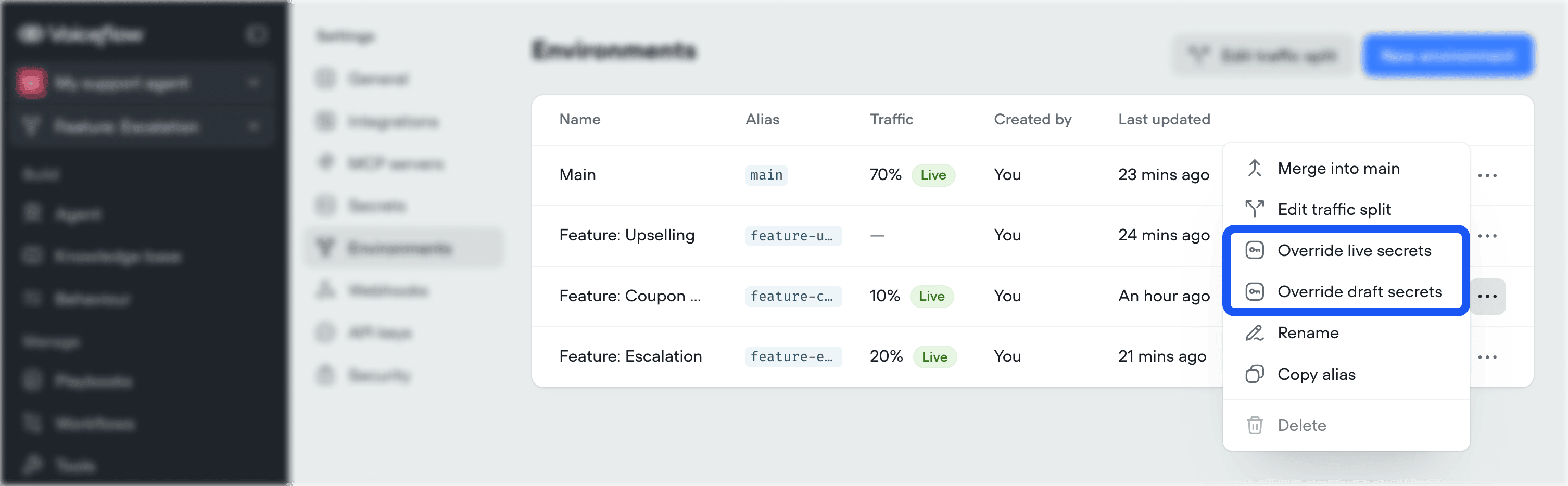
To give one environment a different value, set a per-environment **override**. Open **Settings** → **Environments**, open the `...` menu next to the environment, and select **Override live secrets** or **Override draft secrets**. An override applies only to that environment's draft or live version. It never changes the project-wide default or affects any other environment, and secrets without an override fall back to the default.
## Secrets across environments
Secrets are project-wide. The values you set in **Settings** → **Secrets** are the defaults for every [environment](/docs/documentation/deploy/environments) in your project, including `Main`, and any change applies across all of them immediately.
## Overrides and merging
Because [merges](/docs/documentation/deploy/environments/merging) replace the content of `Main`, when you merge an environment to main, its secret overrides are also applied to `Main`. If you've been testing with non-production credentials, such as a development API key, we recommend you remove the live secrets override prior to merging to prevent your live agent being connected to non-production APIs.
To give one environment a different value, set a per-environment **override**. Open **Settings** → **Environments**, open the `...` menu next to the environment, and select **Override live secrets** or **Override draft secrets**. An override applies only to that environment's draft or live version. It never changes the project-wide default or affects any other environment, and secrets without an override fall back to the default.
 ## Duplicating and exporting projects
When you duplicate or export a project, only secret names are included. Secret values are never copied for security reasons. After importing a duplicated project, you'll need to re-enter the secret values in **Settings** → **Secrets**.
## Security
Secrets are encrypted using AES-256 GCM, which provides both confidentiality and integrity protection through a Message Authentication Code (MAC). Encryption keys are securely managed and secrets are stored and transmitted according to industry best practices.
## Duplicating and exporting projects
When you duplicate or export a project, only secret names are included. Secret values are never copied for security reasons. After importing a duplicated project, you'll need to re-enter the secret values in **Settings** → **Secrets**.
## Security
Secrets are encrypted using AES-256 GCM, which provides both confidentiality and integrity protection through a Message Authentication Code (MAC). Encryption keys are securely managed and secrets are stored and transmitted according to industry best practices.