


To give your agent access to the knowledge base, open the Agent and make sure the knowledge base toggle is on in system tools. When on, your agent will automatically use this tool when it needs information to answer a question.

When on at the agent level, individual playbooks can also query the knowledge base. You can override query settings at the playbook level without impacting the agent or other playbooks.
Configuring the knowledge base tool
When you enable the knowledge base system tool in your agent, you can configure how it queries your content.

Trigger
Describes what this tool does and when the agent should use it. By default this is pre-filled with an opinionated description, however, you can reset it to a simpler default, or override it to your use-case. You can also add examples in your agent or playbook instructions showing when to use - or avoid - this tool for better retrieval accuracy.
Custom query
By default, the agent uses the user’s last message as the search query. Use a custom query to override this - useful when you want to search on a specific variable or a reformulated version of the user’s input. To insert a variable, type { in the input.
Query re-writing
When enabled, the model rewrites the user’s last message before searching based on your instructions - improving retrieval for conversational or ambiguous inputs. Useful when users don’t phrase questions the way your content is written.
Chunk limit
Controls how many content chunks are returned per query (1-10, default 3). Higher values return more context but increase latency and token usage. Start at 3 and increase if the agent is missing relevant information.
Meta data filtering
Unfamiliar with adding meta data in the knowledge base? Learn more
Filter which data sources are queried based on metadata tags. Useful when you have content for different plans, regions, or product lines and want to make sure the agent only retrieves what’s relevant for the current user.
Meta data filtering lets you apply values manually, or let the agent/playbook apply query values at runtime based on the conversation history.
You can add a variable to the default value field by typing{ .

Tool messages
Customize what the user sees while the knowledge base tool is running. You can set scripted messages for four states:
- Start - shown when the tool begins querying
- Complete - shown when results are returned
- Fail - shown when the query returns nothing or errors
- Delay - shown if the query takes longer than expected (you set the delay threshold)
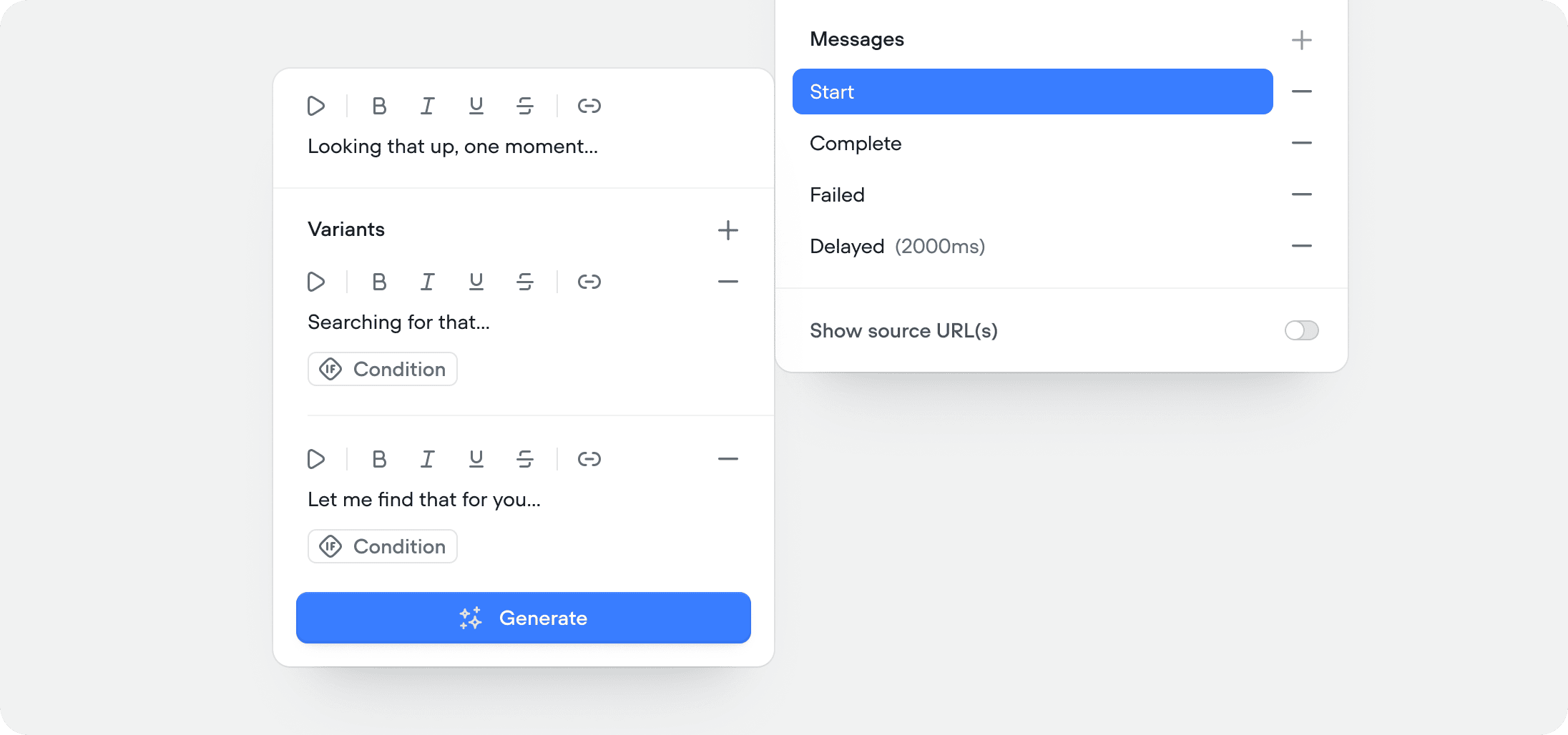

Each state supports multiple message variants - the agent picks one randomly to avoid repetition. You can also set conditional variants that trigger based on variables or context, giving you fine-grained control over what the user sees depending on the situation.
Show source URL(s)
This feature is only available in chat projects.
When enabled, the agent includes the source URL alongside its response so users can verify or read more. Recommended for help centers and documentation.
