

![How to Create a Microsoft Teams Bot [2026]](/images/microsoft-teams-chatbot-2233a81f-hero.webp)
Building AI-powered Microsoft Teams bots just got easier. Here's how I created a fully functional Voiceflow chatbot integrated with Microsoft Teams using Make.com that handles team questions, provides instant answers, and works 24/7—all without writing a single line of code.
What We're Building (And Why Your Team Needs This)
Picture this: A team member asks a question in Microsoft Teams at 10 PM about company policies, gets an instant detailed answer with proper formatting and links, all while you're offline. That's exactly what we're building today.
I'll show you how to create a Voiceflow chatbot integrated with Microsoft Teams via Make.com that:
- Engages team members with natural conversation using AI agents
- Searches your knowledge base instantly for accurate answers
- Responds with beautifully formatted HTML messages
- Works in both channels and direct messages
- Operates 24/7 without human intervention
- Integrates with your existing company documentation
- Maintains conversation context across interactions
By the end of this tutorial, you'll have a working Microsoft Teams bot that can handle real team inquiries and provide immediate value to your organization.
Why Use Voiceflow + Make.com for Microsoft Teams Integration
After building dozens of Teams integrations, I've discovered that the combination of Voiceflow and Make.com creates the most powerful and flexible Teams bot solution available. Here's why this pairing beats traditional bot frameworks and other automation platforms:
Voiceflow Handles the Intelligence:
- Intuitive drag-and-drop conversation designer with Agent steps
- Advanced AI agents that understand context and intent
- Built-in knowledge base integration
- Real-time testing and debugging tools
- Professional conversation flows without coding
Make.com Powers the Teams Integration:
- Native Microsoft Teams modules with full API access
- Visual workflow builder for complex automations
- Superior error handling and retry mechanisms
- Cost-effective scaling compared to Azure Bot Framework
- Real-time message watching and response capabilities
Why This Beats Traditional Bot Development: Instead of setting up Azure Bot Framework, managing app registrations, handling webhook endpoints, and writing code for message processing, Make.com handles everything visually. Your team gets instant intelligent responses instead of dealing with complex technical setup.
Together, Voiceflow creates the conversational intelligence while Make.com handles the Microsoft Teams integration seamlessly. It's like having an expert bot developer and a Microsoft Teams specialist working in perfect harmony.
Tools You'll Need
Here's our complete tech stack (all have generous free tiers):
Core Platforms:
- Make.com - Automation engine and Teams integration (1,000 operations/month free)
- Voiceflow - AI chatbot brain and conversation design (free tier available)
- Microsoft Teams - Your communication platform
- Microsoft Office 365 Premium - Required for Teams API access
Supporting Services:
- Knowledge base source (website, documentation, or file uploads)
- Gmail or Office 365 email (for notifications if needed)
Total setup time: About 90 minutes Monthly cost: Under $15 for most small teams Technical skill required: None—completely visual, no-code setup
Step-by-Step: Building Your Microsoft Teams AI Bot
Build a Microsoft Teams AI Chatbot in 20 Minutes (Voiceflow + Make.com Tutorial)
Phase 1: Setting Up Your Foundation
Step 1: Verify Microsoft Teams Requirements
Before we start, ensure you have the proper setup:
- Microsoft Office 365 Premium account (this is crucial—the free version won't work)
- Admin access to your Microsoft Teams organization
- Ability to add apps and bots to your Teams environment
Step 2: Create Your Make.com Account
Start by setting up your automation engine:
- Sign up for Make.com at make.com (free tier gives you 1,000 operations/month)
- Familiarize yourself with the interface—we'll be creating two scenarios
- Don't worry about connecting to Teams yet—we'll do that after setting up Voiceflow
Step 3: Set Up Your Knowledge Base
Every intelligent Teams bot needs a knowledge base. For this tutorial, I'm using Voiceflow's documentation as the knowledge source, but you can use:
- Your company website (via sitemap)
- Internal documentation files (PDF, DOC, TXT)
- FAQ documents
- Policy manuals
- Any text-based information your team needs access to
The beauty of Voiceflow's knowledge base is that it automatically optimizes queries and retrieves relevant information without you having to structure it perfectly.
Phase 2: Building the AI Brain in Voiceflow
Step 4: Create Your Voiceflow Project
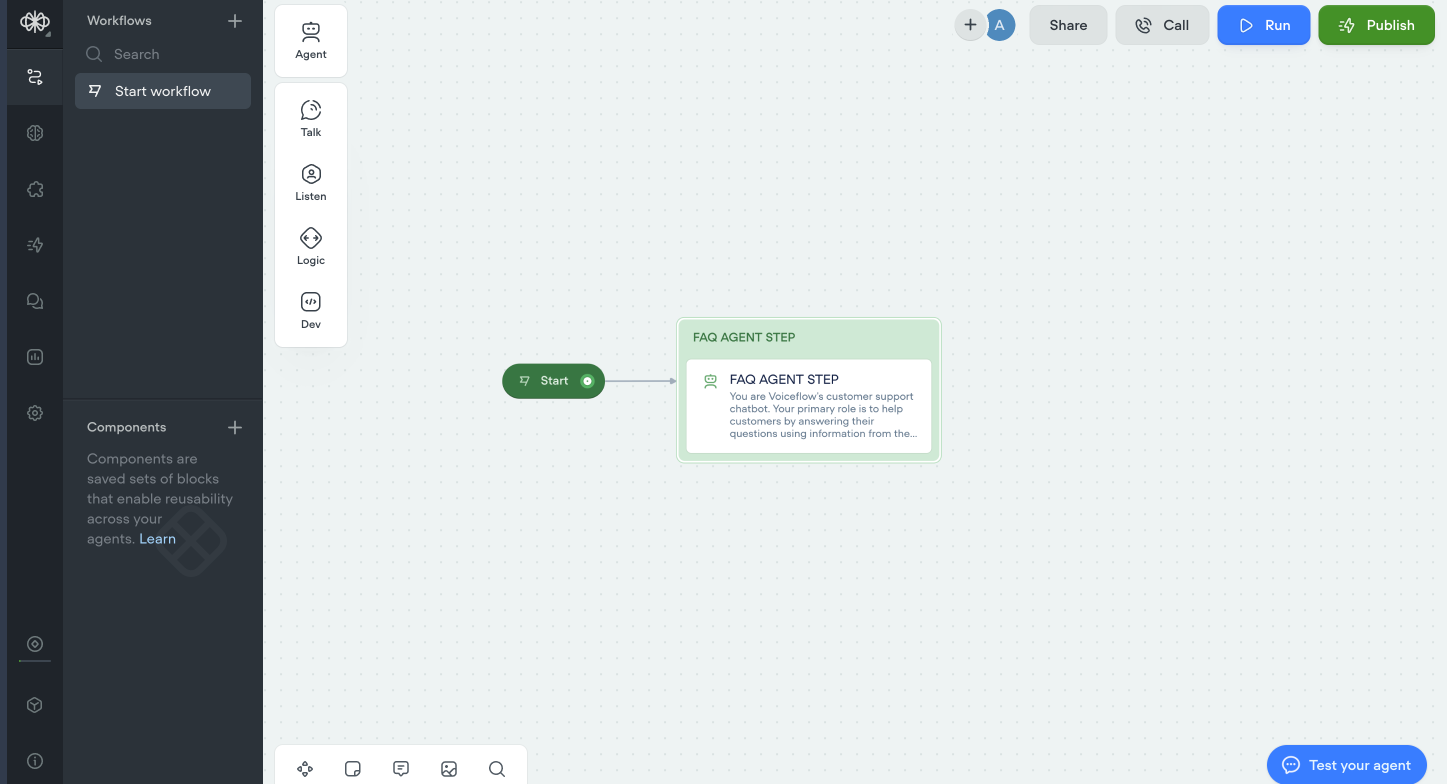
Time to build the intelligence behind your Teams bot:
- Sign up for Voiceflow and create a new project
- Select "Start from scratch"
- Delete any default blocks—we're building this from the ground up
Step 5: Configure Your Knowledge Base
This is where the magic happens:
- Go to the Knowledge Base section in Voiceflow
- Add your data sources:
- For websites: Use sitemap integration (yoursite.com/sitemap.xml)
- For documents: Upload PDFs, Word docs, or text files
- For this demo: I'm using voiceflow.com/sitemap.xml
- Let Voiceflow process your content—this creates searchable chunks that the AI can reference
Step 6: Build Your Agent Step
The Agent step is the heart of your Teams bot. Here's the exact configuration I use:
Instructions:
You are Voiceflow's customer support chatbot. Your primary role is to help customers by answering their questions using information from the Knowledge Base.

IMPORTANT: Always format your responses in clean, simple HTML that matches Voiceflow's chat interface style.

Design guidelines:
- Use simple, clean text formatting
- White text (#ffffff) on dark background
- Blue accent color (#4285F4) for highlights and links
- Minimal styling - focus on readability
- Use basic HTML elements: <h3>, <p>, <ul>, <li>, <strong>
- No fancy containers or complex layouts
- Simple bullet points and text formatting
- Always end with "Powered by Abdullah" where Abdullah links to https://www.voiceflow.com/contributors/abdullah-yahya

Behavior:
1) Always search the Knowledge Base first.
2) Answer using only the Knowledge Base content. If relevant info is not found, say you couldn’t find that in the Knowledge Base and suggest related topics to check.
3) Keep responses concise and scannable.
4) Use only the allowed HTML tags.

HTML formatting rules:
- Headings: <h3> for section titles.
- Paragraphs: <p> for normal text.
- Emphasis: <strong> for key terms.
- Lists: <ul> and <li> for steps or bullets.
- Links: <a> elements must use the blue accent #4285F4.
- Text color: white (#ffffff) body text on dark background.
- Do NOT include custom CSS or external assets in the response body.

Footer requirement (append to every response):
<p>Powered by <a href="https://www.voiceflow.com/contributors/abdullah-yahya">Abdullah</a></p>

Example response structure (sample):
<h3>Resetting Your Password</h3>
<p>To reset your password, follow these steps:</p>
<ul>
  <li>Open the sign-in page.</li>
  <li>Select <strong>Forgot password</strong>.</li>
  <li>Check your email and follow the link.</li>
</ul>
<p>If you don’t receive an email, <a href="https://support.example.com/reset-help">try these tips</a>.</p>
<p>Powered by <a href="https://www.voiceflow.com/contributors/abdullah-yahya">Abdullah</a></p>
Key Configuration Settings:
- Enable Knowledge Base access (toggle on)
- Set AI model to Claude 4 (or your preferred model)
- Set token limit to 1000 (sufficient for most responses)
- Temperature: 0.3 (more focused, less creative responses)
Step 7: Set Up API Integration
Now we need to connect Voiceflow to Make.com:
- Go to Interfaces > API in Voiceflow
- Copy your API key (you'll need this for Make.com)
- Note your project ID (visible in the URL or project settings)
Phase 3: Building Your Make.com Automation
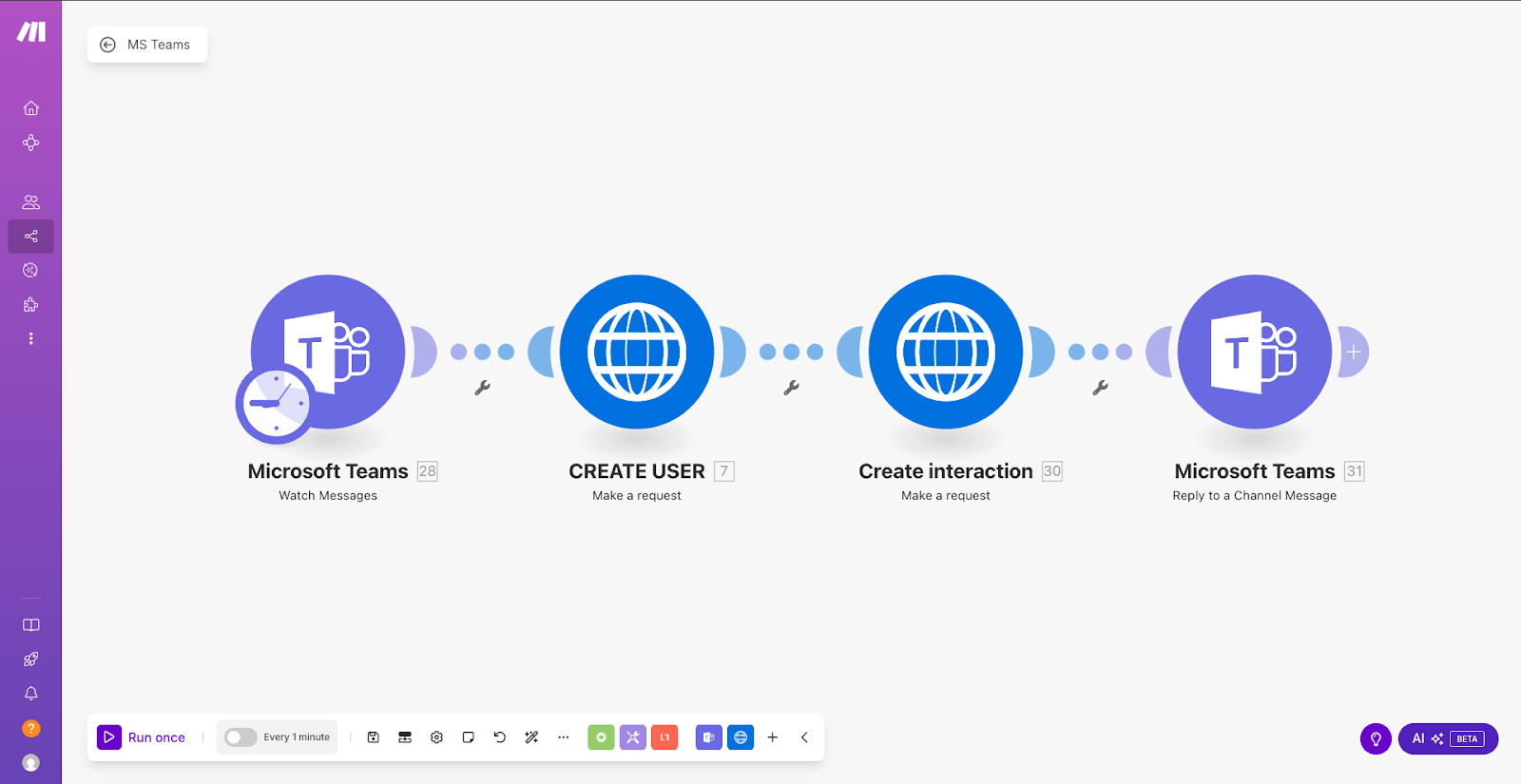
Step 8: Create Your First Scenario - Message Watching
In Make.com, create a new scenario with these modules:
Module 1: Microsoft Teams - Watch Messages
- Connection: Create new Microsoft Teams connection
- Choose: Watch Channel Messages
- Team: Select your team
- Channel: Select your channel (or General)
- Limit: 10 messages (adjust based on your team size)
Important: When connecting Microsoft Teams, Make.com will ask for permissions. You need admin rights to authorize this connection.
Module 2: HTTP - Create User Session This launches a new conversation in Voiceflow for each Teams user:
- URL: https://general-runtime.voiceflow.com/state/user/
{{28.from.user.id}}/interact - Method: POST
- Headers:
- Authorization: YOUR_VOICEFLOW_API_KEY
- versionID: production
- Content Type: application/json
- Body (Raw):
{
  "action": {
    "type": "launch"
  }
}
Module 3: HTTP - Send Message to Voiceflow This sends the Teams message to your Voiceflow bot:
- URL: https://general-runtime.voiceflow.com/state/user/
{{28.from.user.id}}/interact - Method: POST
- Headers:
- Authorization: YOUR_VOICEFLOW_API_KEY
- content-type: application/json
- accept: application/json
- versionID: production
- Parse Response: Yes
- Body (Raw):
{
  "action": {
    "type": "text",
    "payload": "{{28.body.content}}"
  }
}
Module 4: Microsoft Teams - Reply to Channel Message This sends the Voiceflow response back to Teams:
- Team: Same as Module 1
- Channel: Same as Module 1
- Message ID:
{{28.id}} - Reply Message:
{{30.data[].payload.message}} - Content Type: HTML (crucial for formatting)
Step 9: Configure Scheduling and Limits
Since this isn't an instant trigger, configure your scenario to run efficiently:
- Schedule: Every 1 minute (adjust based on your team's activity)
- Maximum messages per run: 10 (adjust based on needs)
- Error handling: Enable automatic retry on failures
Phase 4: Testing and Deployment
Step 10: Test Your Integration
Before going live, test thoroughly:
- Send a test message in your Teams channel
- Wait for the next Make.com execution (up to 1 minute)
- Verify the bot responds with properly formatted HTML
- Check that knowledge base queries work correctly
- Test with different types of questions
Step 11: Optimize Response Formatting
The HTML formatting is crucial for professional appearance. Your Voiceflow agent should output responses like:
<div style="color: #ffffff; font-family: -apple-system, BlinkMacSystemFont, 'Segoe UI', Roboto, sans-serif; line-height: 1.6;">

<h3 style="color: #4285F4; margin: 0 0 12px 0;">🤖 What is a Message Step?</h3>

<p>The <strong>Message step</strong> (also called Text step or Speak step) is one of the fundamental building blocks in Voiceflow for displaying output to users. It's how your AI agent communicates responses, information, and messages to users.</p>

<h4 style="color: #4285F4; margin: 16px 0 8px 0;">🔧 Key Functions:</h4>
<ul>
<li><strong>Text Output:</strong> Display written messages to users in chat interfaces</li>
<li><strong>Speech Output:</strong> Convert text to speech for voice applications</li>
<li><strong>Dynamic Content:</strong> Include variables and personalized information</li>
<li><strong>Rich Formatting:</strong> Support for various text formatting options</li>
</ul>

<p style="color: #6c757d; font-size: 12px; margin-top: 20px;">Powered by <a href="https://www.voiceflow.com/contributors/abdullah-yahya" style="color: #4285F4; text-decoration: none;">Abdullah</a></p>

</div>
Common Issues and Quick Fixes
Problem: "Connection to Microsoft Teams fails" Solution: Ensure you have Office 365 Premium and admin rights. The free Teams version doesn't support third-party integrations.
Problem: "Bot responds to its own messages" Solution: Add a filter module before the HTTP requests to exclude messages from your bot user ID.
Problem: "HTML formatting doesn't display properly" Solution: Ensure Content Type is set to "HTML" in the Teams reply module and test your HTML in a validator first.
Problem: "Bot doesn't respond to some messages" Solution: Check your Make.com execution limit and schedule frequency. Increase the limit or decrease the schedule interval.
Problem: "Knowledge base returns irrelevant results" Solution: Review your knowledge base content and consider adding more specific documentation or adjusting the AI instructions.
Advanced Customizations
Once your basic Teams bot is running, consider these enhancements:
Multi-Channel Deployment: Create separate scenarios for different Teams channels with channel-specific knowledge bases.
User Context Tracking: Use Voiceflow's session management to maintain conversation context across multiple interactions.
Rich Media Responses: Extend the HTML formatting to include images, cards, and interactive elements supported by Teams.
Analytics Integration: Connect Make.com to Google Sheets or your analytics platform to track bot usage and popular questions.
Escalation Workflows: Add logic to detect when questions need human intervention and notify team managers.
Department-Specific Bots: Create specialized bots for HR, IT, Sales, and other departments with tailored knowledge bases.
Template Download
Want to skip the setup and start with working templates? I've created a complete package that you can download for free:
Voiceflow Template:
- Pre-configured Agent step with optimized prompts
- Knowledge base integration setup
- Professional HTML formatting examples
Make.com Blueprint:
- Complete Teams integration scenario
- Error handling and retry logic
- Optimized scheduling configuration
HTML Response Templates:
- Professional formatting examples
- Teams-compatible styling
- Branded response templates
Real Results: What to Expect
Based on implementations across various organizations, here's what you can typically expect:
Week 1: 40-60% of routine questions handled automatically Month 1: 70-80% reduction in repetitive support requests Month 3: Team members actively prefer bot responses for quick answers Ongoing: 24/7 knowledge access improves team productivity significantly
One software company saw a 300% increase in internal knowledge base usage within the first month, simply because information became instantly accessible through Teams.
Next Steps: Making It Your Own
Your Microsoft Teams bot is just the beginning. Here's how to evolve it:
- Analyze conversation logs in Voiceflow to identify knowledge gaps and optimize responses
- Expand knowledge base based on actual team questions and feedback
- A/B test different response formats to improve user satisfaction
- Train your team to leverage the bot effectively for daily workflows
- Scale to multiple Teams environments using Voiceflow's deployment options
Wrapping Up: Your AI-Powered Team Assistant
Building a Microsoft Teams bot with Voiceflow and Make.com isn't just about automation—it's about creating intelligent team experiences that enhance collaboration and productivity. You've just built a system that combines natural conversation with comprehensive knowledge access.
The combination of Voiceflow's AI agents and Make.com's Teams integration creates something greater than the sum of its parts—a truly intelligent team assistant that works around the clock, answers questions instantly, and provides consistent, accurate information to your entire organization.
What's your next Teams automation project? I'd love to see how you customize this bot for your specific organization. Share your variations, success stories, or questions in the comments below.
If you want to dive deeper into advanced Voiceflow + Make.com workflows or need help building a custom solution for your team, let's connect for a free strategy session.
Ready to build? Start with the templates above, or watch the complete video walkthrough where I build this entire system from scratch in real-time. Every click, every setting, every configuration—nothing hidden.
Teams using AI assistants are winning. The ones still answering the same questions manually are falling behind. Which one are you?