
Voiceflow named a 2026 Best Software Award winner by G2
Read now


To get started with this project, you'll need your Voiceflow Assistant Dialog API key. You must have this key every time you want to make a request to the /interact endpoint.
How to obtain your API key:
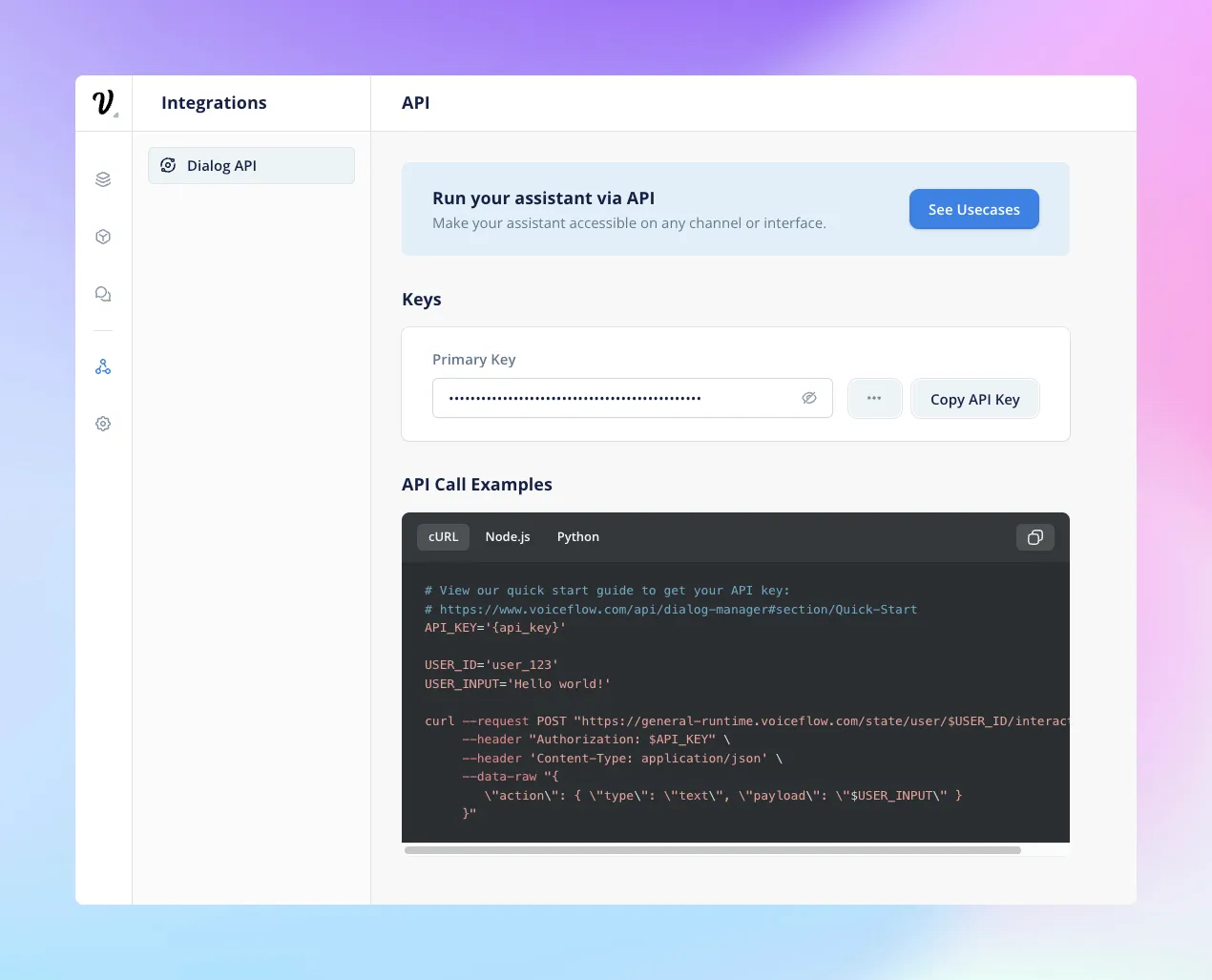
The source of this project is publicly available on Github, where you can fork it and tweak it as you like.
index.html: This file contains the main structure of the webpage, including loading the Google Fonts, the main scripts.js file, and the siriwave library. This is also where we're setting the data-version attribute we then use in our Dialog API request header to interact with the chosen version of our Assistant.
styles.css: This file contains the styles for the webpage, such as animations for fading in and out, and other visual elements. You can customize this file to match your own design preferences.
scripts.js: This file contains the JavaScript code for handling the interaction with the Voiceflow Dialog API, fetching a random image from the /images directory to use it as a background, and rendering the responses on the webpage. This is also in this file that we set the Dialog API key.
siriwave.umd.min.js: This file contains the JavaScript code for generating the wave animation when we play audio.

/image directory: Here, find the selected images we want to use for the background. All images are from Unsplash, created by Pawel Czerwinski.
The main function for interacting with the Voiceflow Dialog API is the `interact()` function in the scripts.js file. This function sends a POST request to the Dialog API with the necessary headers, including the Version ID and API key. It also includes a config object in the body of the request to configure certain aspects of the interaction, such as enabling Text-to-Speech (TTS) and removing SSML tags.
The response from the Dialog API is then processed by the `displayResponse()` function, which iterates through the items in the response and renders them on the webpage. This includes handling speak steps with text and audio, text steps, and visual steps with images.
To ensure that the audio plays at the correct time and does not overlap with other audio, a queue is used to manage the playback of audio files.


.avif)
.avif)